Featured Post Today
print this page
Latest Post
Showing posts with label samsung. Show all posts

Samsung Ativ Tab preview: First look

Introduction

It may look like Samsung is dipping a toe in unknown waters but its long-time partnership with Microsoft is a wet suit of sorts. The Ativ Tab may be the company's first Windows 8 RT tablet but not its first Windows slate.
You may be familiar with the Samsung Series 7, a handful of tablet PCs running the desktop version of Windows 7. These Intel-powered devices are essentially laptops proper (give or take a keyboard) and have understandably been off our radar.
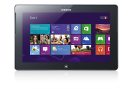
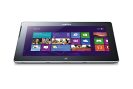
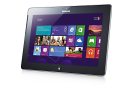
Samsung Ativ Tab Preview Samsung Ativ Tab Preview Samsung Ativ Tab Preview Samsung Ativ Tab Preview
Samsung Ativ Tab official photos
The Ativ Tab on the other hand is a tablet that we would be interested in - a tablet like them Google and Apple slates. Running the lighter Windows 8 RT, the Ativ Tab is powered by an ARM chipset, like millions of phones and other handheld devices. All prim and proper, just not quite sure about the name. Ativ as in "Vita" read backwards. Yeah, right.
Anyway, it will be up to the Ativ Tab, the Microsoft Surface and probably more Windows-powered slates from the likes of Acer and Asus (why not Nokia) to bring the professed three-horse race over to tablets.
But let's not get carried away fantasizing about a double-edged attack on the iPad - an idea, which Samsung of all makers would most certainly savor - and take a look at the Ativ Tab's highlights instead.

Samsung Ativ Tab at a glance:

  • Form factor: Tablet
  • Dimensions: 265.8 x 168.1 x 8.9 mm
  • Weight: 570g
  • Display: 16M-color 10.1" PLS LCD HD capacitive touchscreen (1366x768 pixels), 400-nits of brightness
  • OS: Windows 8 RT, Windows UI
  • Chipset: 1.5 GHz dual-core Krait CPU, Adreno 305 GPU, Snapdragon S4 Plus APQ8090a chipset, 2GB of RAM
  • Connectivity: Dual-band Wi-Fi a/b/g/n, Wi-Fi Direct, Wi-Fi Channel Bonding, Assisted GPS, Bluetooth 4.0, microHDMI, NFC, USB 2.0 Host
  • Memory: 32/64GB of inbuilt storage, expandable via a microSD card slot (up to 64GB)
  • Camera: 5 MP autofocus camera, LED flash with 720p video recording, 1.9MP front-facing camera
  • Battery: 8,200mAh Li-Ion
  • Misc: Microsoft Office package, Gyro sensor, accelerometer sensor for automatic UI rotation, ambient light sensor, DivX/XviD support, TV-out (adapter required), USB host Proprietary 13-pin connector for keyboard dock, Capacitive Sylus (optional)
Specs-wise there's nothing particularly impressive about the Samsung Ativ Tab. It's less powerful than even some of the smartphones out there, we've seen better screens, more apps, voice call support, and probably superior media capabilities elsewhere.
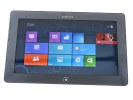
Samsung Ativ Tab Preview Samsung Ativ Tab Preview
Samsung Ativ Tab live photos
But the Ativ Tab has other strengths, the Office package and seamless compatibility with your home or office PC being one of the highlights. It has expandable storage too, which not all tablets guarantee - the Surface for one hasn't got a card slot. An optional keyboard and a stylus are other points in favor. Now, let's start exploring the Samsung Ativ Tab.

Design and build quality

The Ativ Tab is a good-looking gadget with quality build and premium feel. It takes a lot of design cues from the Galaxy Note 10.1, but somehow manages to look way better. The minimalist design suits this tablet quite well.
The slate is entirely made of plastic, which may sound questionable considering the magnesium case of the Microsoft Surface, but there's nothing about the build and finish to raise concern. The back of the Ativ Tab is nice to touch and has a brushed aluminum look.
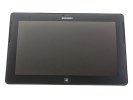
Samsung Ativ Tab Preview Samsung Ativ Tab Preview Samsung Ativ Tab Preview
Samsung Ativ Tab design
The Samsung Ativ Tab is built around a 10.1" PLS LCD display of the reasonable 1366 x 768 pixel resolution. The screen is very bright at 400-nits and boasts wide viewing angles.
The image quality is above average with vivid colors and reasonably deep blacks (we're saving our usual screen tests for a retail unit).
Pixel density is nothing to be excited about (155ppi), but considering tablets like the Ativ Tab are viewed at a bigger distance than phones, it's not much of an issue.
The Windows 8 RT platform mandates a single hardware control - the classic Windows Start button. On the Ativ Tab it is centrally placed below the display.
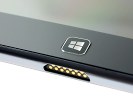
Samsung Ativ Tab Preview
The classic Windows button
In our pre-release unit, the Start button felt a little flimsy, but this will hopefully be sorted before the Ativ Tab launches. Overall, the tablet feels extra solid, no rattle and creaks even when we tried to twist it.
The front-facing camera is located above the display, along with all the sensors. In the left corner, there's a status LED.
There are two front-facing speakers on either side of the screen. We found this location to much better suit gaming and movie watching than the sides or the back of the slate. Due to the position of the speakers in the upper half of the tablet, you're not likely to cover them with your palms.
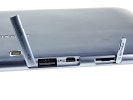
At the top of the Samsung Ativ Tab (in landscape) are all the buttons and ports (except the docking port). There we find the 3.5mm audio jack along with a lock/power button and the volume rocker. There's a full-size USB 2.0 port and a microHDMI port, both sharing a plastic lid. Lastly, there's a microSD card slot which is also covered.
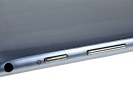
Samsung Ativ Tab Preview Samsung Ativ Tab Preview Samsung Ativ Tab Preview
The busy top side houses the SIM, microSD slots along with 3.5mm audio jack, volume rocker, power/lock key
The port for connecting an optional keyboard, complete with a touchpad, is located at the bottom. There's a hinge hole on each side to firmly secure the keyboard. This optional peripheral is something to consider, if you are going to do a lot of typing. Alternatively, you choose the money-saving option of a wireless Bluetooth keyboard. A mouse can be connected too via the USB 2.0 port.
The Samsung Ativ Tab uses a proprietary connector for charging only, which is placed at the bottom left.
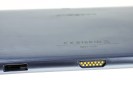
Samsung Ativ Tab Preview
The bottom has the primary mic, the connectivity port and the stylus housing
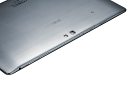
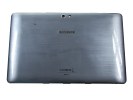
At the back of the Ativ Tab 10.1 we find a 5MP camera lens with an LED flash next to it. The camera is quite capable of shooting the occasional photos and HD videos.
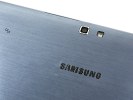
Samsung Ativ Tab Preview Samsung Ativ Tab Preview
The back of the Ativ Tab • A close-up of the camera
The Samsung Ativ Tab gets its juice from a beefy 8,200mAh Li-Ion battery. Although there are no official battery life quotes yet, Microsoft promise to impress users with longevity thanks to the OS efficient resource managing. We'll be doing our own battery tests once we obtain a retail-ready unit.
The plastic used on the outside is the glossy variety rather than the matte finish on recent Samsung tablets. Although it's very nice to the touch, it takes fingerprints easily.
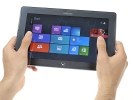
Operating the tablet with one hand, while holding it with the other is possible, but sooner or later you are going to feel the Ativ Tab's weight of 570 grams. Nevertheless, holding it is extremely satisfying thanks to solid build and the 8.9mm thickness. The Samsung Ativ Tab will have an optional keyboard with a touchpad. A stylus is being mentioned too.
Samsung Ativ Tab Preview
The Ativ Tab held in hands

Windows 8 RT in charge

In its pre-release form, the Samsung Ativ Tab runs a Consumer Preview of the Microsoft Windows 8 RT. The latest version of Microsoft's OS boasts the familiar tile-based user interface.
Here's a quick hands-on video of the Ativ Tab UI to familiarize you with Windows 8 for tablets.
The "RT" part of the name indicates a special variety of the Windows 8 OS, designed to run on ARM-powered hardware. As a result, Windows 8 RT could only run Metro apps, and not the typical x86 Windows desktop programs.
This limitation doesn't take anything away from the great looks though. Microsoft has done an outstanding job of rethinking a rich and complex Windows 8 into a touch-friendly and easy-to-use everyday companion without compromising its capabilities.
The lockscreen in Windows 8 RT is minimalist, showing the time and date as well as battery and Wi-Fi status icons. Swiping up unlocks the slate and welcomes you with the redesigned Start menu.
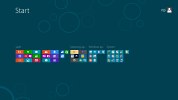
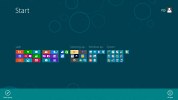
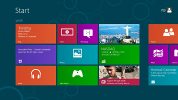
Here's where the Windows Phone 7 tiled style that we love storms Windows 8. The start menu is composed of live tiles (which can be resized) acting as shortcuts to different apps and services. They can display app-specific information and use cool animations doing so. Mind you, only pinned apps are showed in the Start menu.
Samsung Ativ Tab Preview Samsung Ativ Tab Preview Samsung Ativ Tab Preview
The revamped Start menu in Windows 8
You can group app tiles by dragging them onto a new group or an already existing one. A pinch will zoom out all pinned apps and show the different groups. From here, you can rename groups.
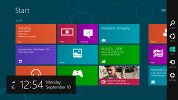
Windows 8 introduces a few new gestures that enhance the user experience. A swipe from the right most edge of the screen brings up what Microsoft calls "Charms". A taskbar of sorts with icons for Search, Share, Start, Devices and Settings. If you have opened an app and bring up Charms, they will perform context-specific actions: bring up settings for the relevant app, do app-specific Search or Share.
Samsung Ativ Tab Preview
Charms in Windows 8 RT
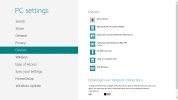
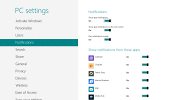
Tapping on the Settings button on the homescreen brings up a panel of quick settings and power options. Think of those settings as more of preferences, as they don't control the usual hardware settings Windows users are accustomed to. They rather allow you to control notifications, accounts, customization, and other options.
The classic Windows settings are found in the Control panel, in the Desktop mode, which we'll cover later.
Samsung Ativ Tab Preview Samsung Ativ Tab Preview Samsung Ativ Tab Preview
The settings menu in Windows 8
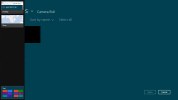
A left to right swipe acts like a classic ALT+Tab command and switches over to the next app you have opened. Alternatively, swiping left and going back right in a peculiar double swipe displays a thin strip listing all opened apps.
A swipe from the bottom unveils a pop-up bar with a contextual menu for the current app. Think a cousin of the right mouse click. To simulate a right click (and bring the contextual menu) on a specific item on the screen (e.g. a tile on the start screen), tap and hold and nudge down. The same pop up bar appears bellow showing you different options.
Lastly, there's the top-to-bottom swipe. It has two functions depending on the swipe you make. On a short swipe, it reveals an app-specific contextual menu. In Internet Explorer 10 for instance, it brings a list of opened tabs. A longer swipe from the top will close an app (just like the ALT+F4 combo). Some serious Nokia N9 stuff here.
Samsung Ativ Tab Preview
A list of currently opened apps in Windows 8
We loved the split-screen feature allowing you to accommodate two apps at a time. An app can be dragged and docked to a part of the screen without completely pushing the previous one away. You cannot split the screen in half - there's always a small and a big window. It actually makes sense to have the web browser or video player in reasonable size and stuff like email, messages, stocks, etc. in the small window.

Samsung Ativ Tab Preview Samsung Ativ Tab Preview
Split-screen mode for multitasking
Plenty of neat tricks in the Windows 8 user interface, no doubt about that. Now, let's take a look at some specific apps and the Desktop mode.
0 comments

Samsung Galaxy Note II preview: First look


Introduction

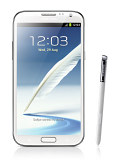
The original Galaxy Note was a runaway success despite all the doubts that its size and stylus caused. It's understandable then, why the new Samsung Galaxy Note II was greeted with so much excitement. It brings a new and improved screen, boosts processing power significantly and makes the S Pen even better.
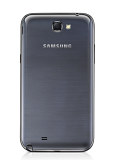
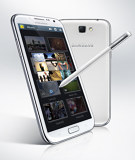
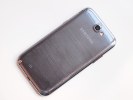
Samsung Galaxy Note II Preview Samsung Galaxy Note II Preview Samsung Galaxy Note II Preview Samsung Galaxy Note II Preview
Samsung Galaxy Note II official photos
The screen of the new phoneblet is quite interesting - Samsung moved it to 16:9 aspect ratio, so it matches the Galaxy S III and extended the diagonal to 5.5". But the Note II Super AMOLED display isn't just the Galaxy S III's screen upsized or even that of the original Note.

Samsung Galaxy Note II N7100 at a glance:

  • General: GSM 850/900/1800/1900 MHz; UMTS 850/900/1900/2100 MHz, HSDPA 21 Mbps, HSUPA 5.76 Mbps; LTE 700/2100 MHz, 100Mbps down, 50Mbps up
  • Form factor: Touchscreen bar phoneblet
  • Dimensions: 151.1 x 80.5 x 9.4 mm, 180 g
  • Display: 5.5" 16M-color HD (720 x 1280 pixels) Super AMOLED capacitive touchscreen, Gorilla Glass 2
  • Stylus: S Pen, 1024 pressure levels, hover functionality
  • Chipset: Exynos 4212 Quad
  • CPU: Quad-core ARM Cortex-A9 1.6 GHz processor
  • GPU: Mali-400MP
  • RAM: 2GB
  • OS: Android 4.1.1 (Jelly Bean) Memory: 16/32/64GB storage, microSD card slot
  • Still camera: 8 megapixel auto-focus camera with backlit sensor, face detection and Best faces feature, touch focus and image stabilization;
  • Video camera: Full HD (1080p) video recording at 30fps, LED flash, 1.9MP front facing camera, video-calls
  • Connectivity: Wi-Fi a/b/g/n, Wi-Fi hotspot, Bluetooth 4.0, standard microUSB port with MHL features (TV Out, USB host), GPS receiver with A-GPS, 3.5mm audio jack, FM radio, NFC
  • Battery: 3100 mAh
  • Misc: TouchWiz 4.0 UI, Extremely rich video/audio codec support, built-in accelerometer, multi-touch input, proximity sensor, gyroscope sensor, RGB sensor, Smart stay eye-tracking, S Voice
A peek under a microscope revealed that the Samsung Galaxy Note II uses a completely new Super AMOLED matrix with three subpixels per pixel. It's an unusual matrix for sure, but it might be the sign of things to come for future Galaxy flagships.
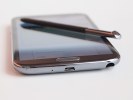
The Galaxy Note II brings the second iteration of the S Pen. The new one is longer and thicker compared to the original, though not as big as the one in the Note 10.1. The new digitizer also offers a great deal of new features - better pressure sensitivity and hover detection of the stylus.
And there are some cool new software tricks to complement the improved stylus - the hover function triggers various previews (everything from email to video), the bigger button on the S Pen enables a variety of gestures and there's a new homescreen pane that automatically pops up when you use the stylus.
Speaking of software, the Galaxy Note II will be one of the first Samsung devices to launch with Android 4.1 Jelly Bean out of the box (along with the Galaxy Camera). The combination of the latest Android and the fast Exynos chipset with a quad-core processor clocked at 1.6GHz makes the Note II a performance beast.
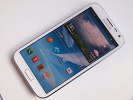
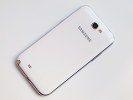
Samsung Galaxy Note II Preview Samsung Galaxy Note II Preview Samsung Galaxy Note II Preview Samsung Galaxy Note II Preview
Samsung Galaxy Note II live photos
At this point it's clear, that we have one of the devices of the season on our hands here, so let's waste no more time and get down to testing.
0 comments

Samsung Galaxy S III Jelly Bean preview: First look

Introduction

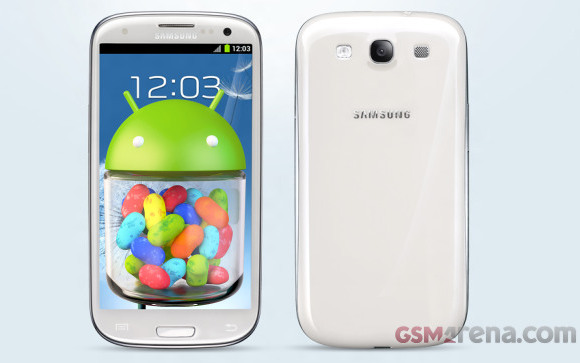
The Galaxy S III didn't stay in the R&D lab long enough to come with Jelly Bean out of box, but once the latest Android version was announced, Samsung was quick to commit to releasing a timely update. And it seems the wait will be shorter than expected with the official update coming in just a few weeks' time.
Knowing how great the Samsung flagship was on ICS, we just couldn't wait to find out how much better things got with Jelly Bean. It's not that the latest Android is such a revolutionary step forward, but it's a flagships duty to bring out the best of its platform and that just can't happen until it has the latest and greatest version powering it.
Our Galaxy S III has been tasting Jelly Bean ever since those first leaked ROMs appeared and now that we finally have some releases good enough to be your daily drivers, we thought we might give you a quick preview and show you what to expect after the official update hits.
With the official update rollout expected to start in just a couple of weeks, development is all about i-dotting and t-crossing so don't expect to see any major changes between what we have here and what Samsung will eventually deliver to your Galaxy S III.
We'll start with a quick rundown of the novelties that the Jelly Bean update brings to the Samsung Galaxy S III to get you up to speed.

Galaxy S III Jelly Bean update new features:

  • Project Butter - smoother UI animations with higher frame rate
  • Google Now
  • Offline voice typing support
  • Better notification area with expandable notifications
  • Better Settings organization
  • Two different modes for home screen behavior
  • Resizable pop-up play window
  • S Note app replaces S Memo
  • Faster web browser
Sadly, the update will cost you your official Flash support, but at least for now you still get the option to side-load a modified Flash apk if it's a must-have for you.
We tried it and it worked fine, but even if you don't want to install software from outside the official repositories it still seems like a fair trade - as long as all the other new features work as expected, that is.
So let's waste no more time and find out - we'll start with the user interface right after the break.

User interface: Project Butter and some new TouchWiz goodies

The so called Project Butter, which raises the UI animations' frame rate to consistent 60 fps, is one of the key novelties of Jelly Bean. The Galaxy S III was always really snappy, but now its interface feels even more fluid.
The UI animations are great - opening and scrolling the app drawer, switching between home screens, opening and closing system apps - everything is a tad smoother and has a more natural feel to it.
Here is a demo video of the Jelly Bean powered Samsung Galaxy S III in action.
It's not that easy to spot the differences and we needed to handle two Galaxy S III units one after the other do so, but they are there. You might want to check out the official Google demo of Project Butter, to get a better idea of what we are talking about.
Besides the better UI animations there isn't much else to notice in this regard. The app drawer and the homescreens are the same; there are just a few refreshed icons here and there.
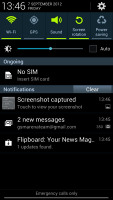
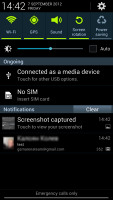
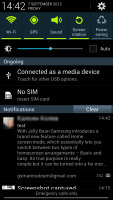
The notification area is probably the greatest beneficiary of the Jelly Bean update. It now offers a brightness control scrubber just below the connectivity toggles. Its top is also occupied by a big digital clock with the date - a minor improvement, but one we really appreciate.
Samsung Galaxy S III Jelly Bean Samsung Galaxy S III Jelly Bean Samsung Galaxy S III Jelly Bean 
The new notification area • expandable notifications
But there is even more to show off here: individual notifications are now expandable. Let's say you've got an email - the sender and subject will pop up in your notification area. In Jelly Bean, you can expand the entry with a pinch gesture to reveal the first few lines the email itself. You can then collapse them again with the opposite pinch move. Neat, isn't it?
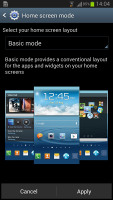
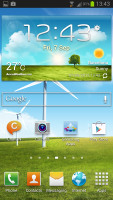
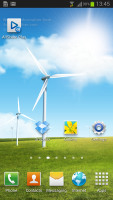
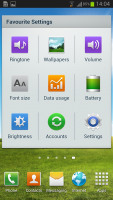
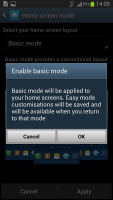
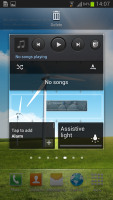
With Jelly Bean Samsung introduces a brand new feature called Home screen mode, which essentially lets you switch between two types of homescreen arrangements - Basic and Easy. Its true purpose is really simple but it can be turned into a far more useful setting.
Samsung Galaxy S III Jelly Bean Samsung Galaxy S III Jelly Bean Samsung Galaxy S III Jelly Bean Samsung Galaxy S III Jelly Bean 
Changing the Home screen mode • the default Basic mode
If you have ever turned on a new Galaxy S III you've already seen Basic mode. This mode is used by default in Samsung droids and gives you the familiar pack of widgets - weather, search, music player and a bunch of shortcuts.
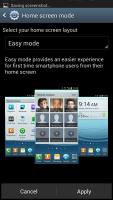
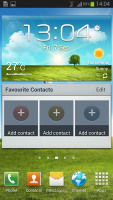
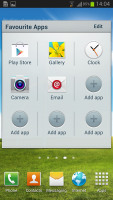
The Easy mode, on the other hand, brings a few new widgets, which feature larger buttons, favorite contacts, favorite apps and a keypad on your home screen. This should allow you to use your Galaxy S III with the things on your home screen with minimal interactions with the app drawer, the notification area and other more "complicated" menus.
Samsung Galaxy S III Jelly Bean Samsung Galaxy S III Jelly Bean Samsung Galaxy S III Jelly Bean Samsung Galaxy S III Jelly Bean 
The Easy mode • your modifications will be saved
The best part of those two modes is that you customize both as you please and your Galaxy S III will save the changes. That way you can easily create two different layouts, e.g. work and fun or travel and home and alternate between them quickly. It can easily be used to mimic what HTC offers with their Scene modes within the Sense UI.
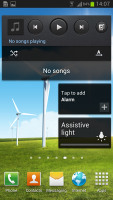
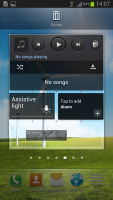
And while we are on the widgets topic, we have to mention their new behavior - they now support automatic resizing and reshuffling. Let's say you are trying to add a new widget on a home screen, but the ones already in place need to be repositioned to make room. With Jelly Bean, they'll do that automatically for you. Also, if the widget you are trying to add is bigger than the available space but supports resize then it will automatically shrink to fit into the free area.
Samsung Galaxy S III Jelly Bean Samsung Galaxy S III Jelly Bean Samsung Galaxy S III Jelly Bean 
Automatic widget repositioning
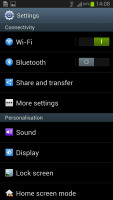
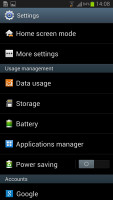
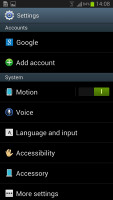
The last thing the Jelly Bean update brings to the UI is the new Settings menu. It's been reorganized to be easier to find what you're looking for, with the less important stuff being put into a 'More Settings' menu for each category. Three sound toggles has been added within the menu trigger by holding the power/lock key.
Samsung Galaxy S III Jelly Bean Samsung Galaxy S III Jelly Bean Samsung Galaxy S III Jelly Bean Samsung Galaxy S III Jelly Bean 
The new settings reorganization and options

1 comments
 
Support : Creating Website | Johny Template | Mas Template
Copyright © 2011. Asianz Club - All Rights Reserved
Template Created by Creating Website Published by Mas Template
Proudly powered by Blogger